
When working with Linux systems, one of the most common tasks, especially for system administrators, developers, or anyone managing a server, is checking the operating system version.
Whether you are troubleshooting, installing compatible software, or just curious about your system, knowing your Linux distribution name and version helps you make better decisions.
In this article, we will explore different ways to check the OS version in Linux, explained in a simple, step-by-step manner. The best part is that you don’t need to be a pro; even beginners can follow along easily!
Also Read: Guide to Install cPanel in a Linux Server
Why is Checking the OS Version Important?
Before we dive into the commands, let’s understand why this matters!
Before we dive into the commands, let’s understand why this matters!
- Install compatible software packages
- Follow the correct installation or upgrade steps
- Apply the right security patches
- Troubleshoot issues more effectively
- Communicate system details when asking for support
Different Linux distributions (such as Ubuntu, CentOS, Debian, and Fedora) often use different package managers and system tools. So, confirming your OS details avoids a lot of confusion later!
Also Read: How to Search a File in Linux Using a Command?
Methods to Check the OS Version in Linux
➢ Method 1: Using the /etc/os-release File (Most Common Way)
The /etc/os-release file contains identification data for your Linux distribution.
★ Command:
| cat /etc/os-release |
★ Example Output:
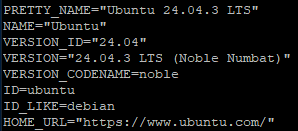
★ Explanation:
- NAME → It will show your Linux distribution name (Ubuntu, CentOS, Debian, etc.).
- VERSION → It will show the full version name and code.
- ID_LIKE → It shows which family your distribution is based on.
- PRETTY_NAME → It will show a nicely formatted version name, good for quick display.
This method works on almost all modern Linux distributions.
➢ Method 2: Using the lsb_release Command
The lsb_release command provides Linux Standard Base information about your distribution.
★ Command:
| lsb_release -a |
★ Example Output:
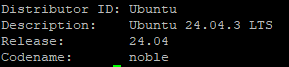
Explanation:
- Distributor ID → It shows your OS name.
- Description → It shows the complete name with version.
- Release → It shows the Version number only.
- Codename → It shows the Internal name used by the distribution (e.g., jammy, buster).
If you get a message like “command not found”, you can install it using:
| sudo apt install lsb-release |
Also Read: How to Restart/Reboot Linux Server by Command?
➢ Method 3: Using the hostnamectl Command
The hostnamectl command not only displays your system’s hostname but also provides OS details.
★ Command:
| hostnamectl |
★ Example Output:
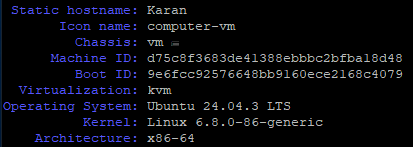
★ Explanation:
You have to look at the Operating System line; it tells you the exact name and version.
This command is part of the systemd suite, so it works on all systemd-based distributions, such as Ubuntu, CentOS, Fedora, Debian, and more.
➢ Method 4: Viewing the issue File
Older systems (especially minimal installations) may not have the lsb_release command. In that case, you can use the /etc/issue file.
★ Command:
| cat /etc/issue |
★ Example Output:

Also Read: How to Configure DNS on Linux?
➢ Method 5: Checking the Kernel Version (Optional but Useful)
Sometimes you might also need to know which Linux kernel version your system is running.
★ Command:
| uname -r |
★ Example Output:

★ Explanation:
The kernel version is important when installing specific drivers or modules, or when diagnosing compatibility issues.
To get full details, including the OS name:
★ Command:
| uname -a |
★ Example Output:

Also Read: Know About the ls Command in Linux With Examples
Quick Summary
Method |
Command |
Works On |
Output Includes |
|---|---|---|---|
/etc/os-release |
cat /etc/os-release |
All Modern Distros |
OS Name, Version, ID |
lsb_release |
lsb_release -a |
Ubuntu, Debian, Fedora, etc. |
Distributor, Codename, Release |
hostnamectl |
hostnamectl |
Systemd-based Systems |
OS + Kernel Info |
/etc/issue |
cat /etc/issue |
Older Systems |
Basic OS Info |
uname |
uname -r |
All Linux Systems |
Kernel Version Only |
Wrapping It Up
That’s it! You now know multiple ways to check the OS version in Linux, whether you are using Ubuntu, CentOS, Debian, or any other distribution.
This small yet essential skill helps you confidently manage your Linux system and ensures you are always using compatible tools and keeping your system up to date.
If you are managing Linux servers for your website, make sure your hosting environment is also optimized for your OS.