
When you’re managing a Linux server, whether it’s for hosting a website, running applications, or handling development tasks, knowing how much memory your server is using is super important!
It’s just like you keep an eye on your phone’s storage or battery usage; keeping track of your server’s memory helps you understand its performance, avoid slowdowns, and troubleshoot issues quickly.
Linux offers multiple built-in commands to check memory usage in real time, and the best part is that you don’t need to install anything extra. With just a few simple commands, you can instantly see how much RAM is used, how much is free, and which processes are consuming the most memory.
In this guide, let’s walk through the easiest and most commonly used commands for checking memory in Linux, so even beginners can follow along.
Also Read: How to Check CPU Usage in Linux?
Simple Ways to Check Memory in Linux
1. Check Memory Using the free Command
The free command is the easiest and most popular way to check RAM usage.
➔ Firstly, open Terminal & log in to your server via SSH or open your Linux terminal.
➔ Then, you have to run the command given below.
| free -h |
What this shows:

- total – Total server RAM
- used – Memory currently in use
- free – Memory not being used at all
- shared – Memory used by the tmpfs fileserver (temporary files stored in RAM) and shared memory segments.
- buff/cache – Memory used for buffers and cache, which Linux uses to speed up server performance.
- available – Memory available for new applications
This is the quickest snapshot of your memory usage.
2. Check Memory Usage Using /proc/meminfo
Linux stores detailed memory stats inside a virtual file called /proc/meminfo.
➔ You have to run the command below:
| cat /proc/meminfo |
What this shows:
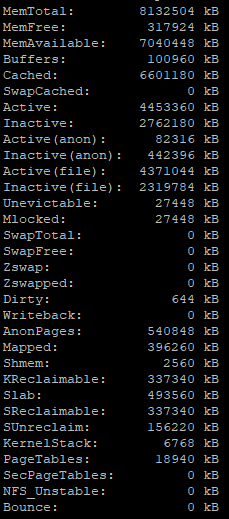
This file gives very detailed memory information, such as:
- MemTotal
- MemFree
- Buffers
- Cached
- SwapTotal
- SwapFree
This is useful if you want in-depth numbers beyond the introductory overview.
3. Check Memory Usage in Real Time Using top
The top command lets you continuously monitor memory.
➔ You have to run the command below
| top |
What this shows:

- Total used/free memory
- Memory being used by each running process
- Processes sorted automatically by resource usage
This is ideal when you want to see which applications are consuming the most RAM right now.
Also Read: How to Check OS Version in Linux?
4. More Advanced Real-Time Monitoring with htop (If Installed)
htop is a more colourful, easy-to-read version of top.
➔ You just have to run the simple command:
| htop |

Benefits
- It offers graphical memory bars.
- It offers easy navigation.
- It offers sorting processes using arrows.
If it’s not installed, you can install it using:
For Ubuntu/Debian
| sudo apt install htop |
For CentOS/RHEL
| sudo yum install htop |
5. Check Memory Usage Per Process Using ps
If you want to see memory usage by specific processes, use:
| ps aux –sort=-%mem |
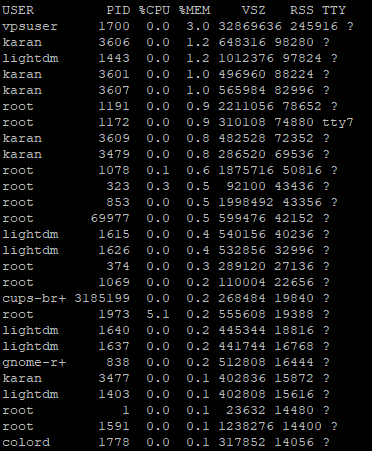
What this does
- Lists all running processes.
- Sorts them by highest memory usage first.
- Helps identify memory-hungry applications.
Also Read: How to Check OS Kernel Version in Linux?
Conclusion
Checking memory usage in Linux is simple once you know the right commands. Tools like free, top, htop, and /proc/meminfo give you everything from a quick summary to detailed breakdowns. Regular monitoring helps you understand your server’s performance, troubleshoot issues faster, and plan upgrades effectively.
Whether you are running a small website or managing large applications, keeping an eye on memory usage ensures your Linux server runs smoothly and efficiently.