
If you are working on a Windows server or computer, you have likely encountered applications that depend on the .NET Framework. Many software, control panels, hosting tools, and enterprise applications require a specific .NET Framework version to run correctly.
When something doesn’t work as expected, one of the first questions asked is:
Which .NET Framework version is installed?
Instead of clicking through multiple windows or control panel settings, Windows provides a faster and more reliable way to check this using Command Prompt (CMD).
In this detailed guide, we will walk you through simple CMD commands to check the installed .NET Framework version and also explain what each command actually does, so you understand what’s happening behind the scenes.
Let’s get started!
Also Read: How to Check Laravel Version in Windows CMD?
Methods to Check .NET Framework Version Using CMD
Windows stores .NET Framework installation details in specific system folders and registry locations. CMD allows us to query this information directly.
Step 1: Open Command Prompt
First, open CMD with regular user access.
- Press Windows + R
- Type ‘cmd’
- Press Enter
The Command Prompt window will open!
Method 1: Check .NET Framework Version Using the System Folder
This method checks the system folder where .NET Framework files are stored. Each folder name represents a version of the .NET Framework installed on the system. It is the fastest way to confirm whether the .NET Framework is installed and to see the available major versions.
This method is best when you want a quick overview of installed versions!
➔ Enter the following command in CMD and press Enter:
| dir %windir%\Microsoft.NET\Framework /AD |
What This Command Means:
➢ dir: Lists files and folders in a directory.
➢ %windir%: Refers to the Windows installation directory (usually C:\Windows).
➢ Microsoft.NET\Framework: This folder stores installed .NET Framework versions.
➢ /AD: Displays only directories (folders), not files.
What You’ll See:
After running the command, CMD will show folders with names like:
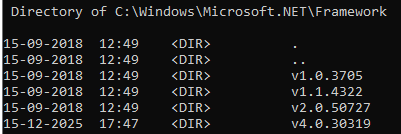
Each folder represents a version of the .NET Framework installed on your system.
Here:
v4.0 means .NET Framework 4.0 is installed
Also Read: How to Check React Version in Windows CMD?
Method 2: Check the Exact .NET Framework 4.x Version Using Registry (CMD)
This method directly reads the Windows Registry, where Microsoft stores detailed information about the .NET Framework installation. The command returns a release number that uniquely identifies the installed .NET Framework 4.x version.
This is the most accurate method and is commonly used by system administrators and developers when an application requires a specific .NET Framework version.
➔ To find the exact version of .NET Framework 4.x, use this command:
| reg query “HKLM\SOFTWARE\Microsoft\Net Framework Setup\NDP” /s |
What This Command Means:
➔ reg query: This command tells Windows to search the registry and display the results.
➔ HKLM (HKEY_LOCAL_MACHINE): This registry hive contains system-wide settings that apply to all users.
➔ Microsoft\NET Framework Setup\NDP: This is the main registry location where Microsoft stores details of every installed .NET Framework version, including older and newer releases.
➔ /s: This option means search recursively. It scans all subkeys under the specified path, ensuring that no installed .NET Framework version is missed.
What You’ll See:
CMD will return a numeric value like:
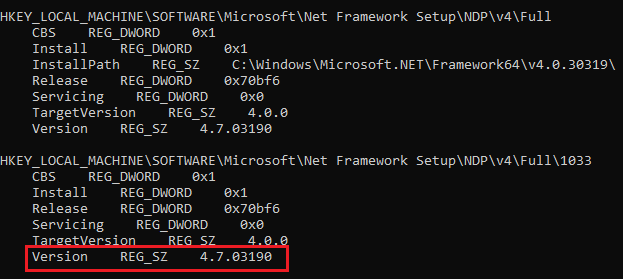
This number represents the installed .NET Framework 4.7 version.
Also Read: How to Check the SQL Version in Windows CMD?
Important Things to Keep in Mind
➔ Windows systems can have multiple versions of the .NET Framework installed at the same time.
➔ Applications usually use the version they are built for.
➔ Versions of the .NET Framework 4.x are in-place upgrades, so only the latest version is active.
Also Read: How to Check Angular Version in Windows CMD?

Launch your projects on a secure, scalable Windows VPS designed for strong performance.
Conclusion
Checking the .NET Framework version using Windows CMD is quick, reliable, and doesn’t require navigating through multiple settings screens. Using simple commands, you can instantly identify which versions are installed and whether your system meets the application requirements.
If you want a quick check, listing the framework folders works well. But if you need the exact .NET 4.x version, querying the registry is the most accurate method. Knowing this information can save you time when troubleshooting software issues or preparing a server for new applications.