
Highlights
- Email forwarding in cPanel allows you to automatically forward emails from one address to another, making it ideal for managing multiple inboxes or sharing emails with team members.
- You can easily set it up in minutes from the Forwarders section in cPanel.
Introduction
If you are managing emails through your domain and want the messages sent to one address to go to another automatically, email forwarding in cPanel is the easiest way to do it.
Whether you are looking to forward emails to a personal inbox, multiple team members, or even to a third-party email service like Gmail or Outlook, cPanel makes your task simple and efficient.
In this guide, we will walk you step-by-step through how to set up, manage, and test email forwarding using cPanel, ensuring you never miss an important message again!
Prerequisites
Before you start:
- You need access to your cPanel account.
- Your domain should have email services enabled.
- In that, atleast one domain-based email address should be created.
Also Read: How to Reset Email Account Password in cPanel?
Steps to Set Up Email Forwarding in cPanel
➔ Log in to your cPanel with your credentials.

➔ Once logged in, scroll down to the ‘Email’ section & click on ‘Forwarders.’
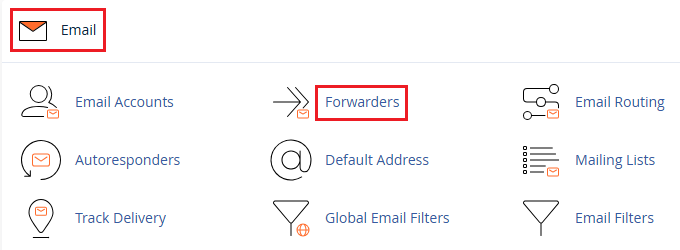
➔ In that, you have to click ‘Add Forwarder’
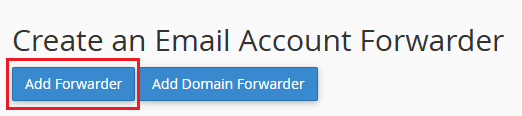
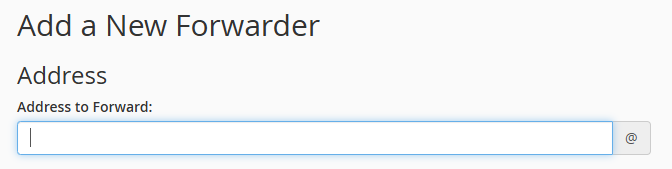
➔ Under ‘Address to Forward’, you have to enter the username part of the email.
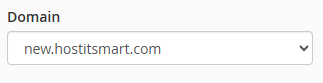
➔ You have to choose the domain from the dropdown (e.g., yourdomain.com).
➔ In the ‘Destination’ section, select ‘Forward to Email Address’ & enter the destination email (e.g., you@gmail.com).

➔ Once added, you have to click ‘Add Forwarder’

That’s it! Your email forwarder is now active.
Verify things from your end by sending a test mail to the forwarding address to check if the forwarded email arrives in the destination inbox. If not received, check your spam folder or verify the forwarding configuration.
Also Read: How to Create a Basic SPF Record in cPanel?
Are you looking to forward all emails from one domain to another domain?
Here is how you can do it!
Set Up a Domain Forwarder (To Forward All Emails)
➔ To set up a domain forwarder, go to the ‘Forwarders’ page.
➔ You need to click on ‘Add Domain Forwarder’

➔ In that, choose your domain (e.g., yourdomain.com).

➔ After that, enter the destination domain (e.g., anotherdomain.com)

➔ Once everything is added, just click on ‘Add Domain Forwarder’

Common Troubleshooting Tips
Issue |
Solution |
Forwarded emails not received |
Check your spam folder |
No emails arriving |
Ensure the source email address exists or is spelled correctly |
Duplicate forwards |
Avoid forwarding to the same address multiple times |
Forwarding loops |
Do not forward back and forth between the same two addresses |
Also Read: How to Access the cPanel Database Remotely?

Enjoy seamless cPanel features, smooth email management, and rock-solid performance in our Linux hosting.
Conclusion
Setting up email forwarding in cPanel is more than just a technical step. It’s about streamlining how you manage communication. Whether you are a business owner juggling multiple inboxes or a developer managing client domains, this feature helps you stay responsive, efficient, and organized.
Frequently Asked Questions Relating to Email Forwarding
1. Can I forward one email to multiple addresses in cPanel?
Yes! You just need to create multiple forwarders for the same email to different destination addresses.
2. Will the sender know the email was forwarded?
No, the sender will not know their email was forwarded.
3. Is there a limit to how many forwards I can set up?
Generally, no, but it depends on your hosting provider’s policies.
4. Does forwarding work with Gmail, Outlook, etc.?
Yes! You can forward emails from your domain to any external provider like Gmail, Outlook, Yahoo, etc.