
If you are working with Node.js on your Windows system, it is important to know which version of Node you have installed. As different projects often require specific Node.js versions, checking the version ensures compatibility.
In this detailed guide, we will walk you through the step-by-step process of checking your Node.js version in the Windows Command Prompt (CMD). Even if you are a beginner, you will be able to follow this easily.
Also Read: How to Ping Google in Windows, Linux & MacOS?
Why Check Node.js Version?
Before we start, let’s quickly understand why checking the version is important:
➢ Compatibility: Certain frameworks, such as React, Angular, or Express.js, require specific versions of Node.js.
➢ Troubleshooting: If you face errors, version mismatches could be the cause.
➢ Updates: Helps you know if you should upgrade to the latest stable release.
Also Read: What is Telnet Command in Windows & How to Use it?
Steps to Check Node Version in Windows CMD
- To open CMD in Windows, press Windows Key + R on your keyboard.
- A dialog box will open, Type ‘cmd’ in it & press ‘Enter.’ This will open the Command Prompt window.
- Once CMD is open, type the following command and press ‘Enter’:
| node -v |
- The installed Node.js version will be displayed.
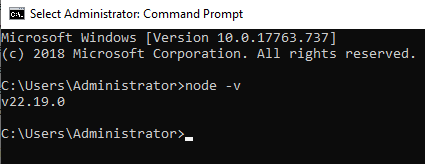
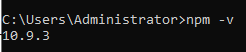
- When Node.js is installed, npm (Node Package Manager) is installed along with it. To check the npm version, you have to run the following command:
| npm -v |
This will show like like:
Common Issues and Fixes
➢ ‘node’ is not recognized as an internal or external command:
If you see this message in your CMD window, it means Node.js is not installed or the installation path is not set in the environment variables.
➢ Old version showing up:
If you see this message in your CMD window, you might have multiple Node.js versions installed. Using a version manager like nvm for Windows can help.
Also Read: How to Install & Start Tomcat in Windows?
Launch your projects on a secure, scalable Windows VPS designed for strong performance.
Conclusion
That’s it! You have just learned how to check your Node version in the Windows Command Prompt. With a single command node -v, you can instantly confirm whether Node is installed and which version you’re running.
So, the next time you start a new project or face an error, just pop open CMD, run the command, and you will have your answer in seconds.