
Your website files are the backbone of your online presence. Whether you upload files, update images, or manage backups, FTP (File Transfer Protocol) makes it easy to access your website files.
But here’s something important: If your FTP password is weak or shared with too many people, your website can be at risk. Changing your FTP password regularly is a smart security practice.
In this guide, you will learn how to change an FTP password in cPanel step by step, in a simple and clear way.
Also Read: How to Change Your Password in cPanel?
When Should You Change Your FTP Password?
You should change your FTP password if:
- You suspect unauthorized access.
- You shared the password with a developer, and the project is completed.
- The password is weak.
- It has not been updated for a long time.
- You notice unusual file changes.
Regular password updates improve your website security.
Also Read: How to Change PHP Version in cPanel?
Steps to Change FTP Password for an Existing FTP Account in cPanel
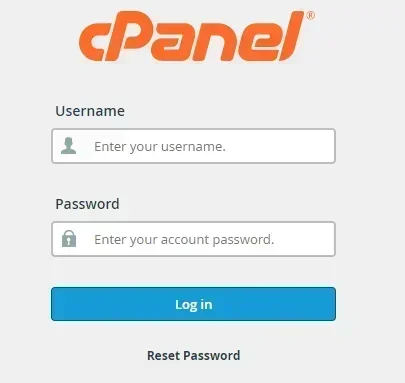
➔ Firstly, you have to log in to cPanel.
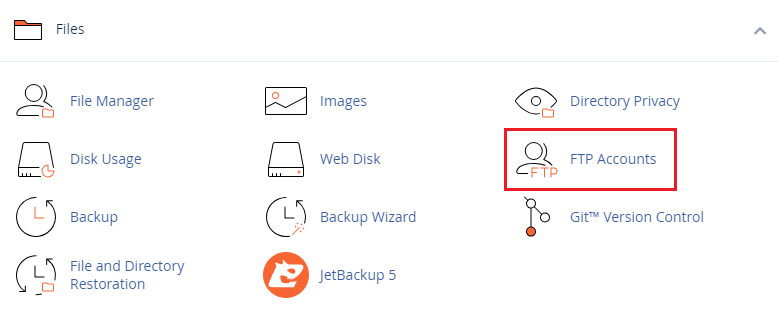
➔ Once logged in, scroll to the ‘Files’ section.

➔ In that, click on ‘FTP Accounts.’
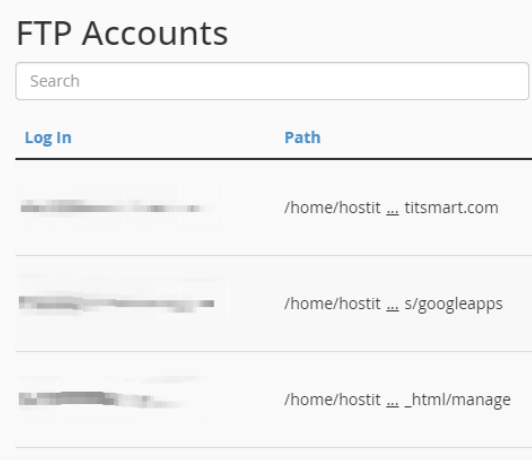
Here you will see a list of all FTP accounts created under your hosting.
➔ Scroll down to the ‘FTP Accounts’ section & find the FTP account whose password you want to change.
There, you will see options like:
- Change Password
- Change Quota
- Configure FTP Client
- Delete
➔ In that, you have to click on ‘Change Password.’

➔ There, you will see two options:
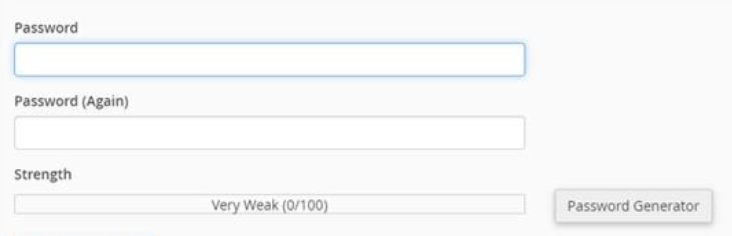
- Enter a new password manually
- Use the Password Generator
➢ Option A: Enter Password Manually
- Type your new password.
- Re-type it to confirm.
➢ Option B: Use Password Generator (Recommended)
- Click on ‘Password Generator.’
- Copy the generated strong password.
- Save it securely (very important).
Make sure the password strength indicator shows strong.
➔ After you entered the new password:
- Click on the ‘Change Password’ button.

- You will see a success confirmation message.
Your FTP password is now updated!
What Happens After Changing the FTP Password?
Once the FTP password is changed:
- The old password will stop working immediately.
- Anyone using the old password will lose access.
- Only the new password will allow login.
If developers or team members use the FTP account, inform them about the update.
Also Read: How to Change MySQL Database User Password From cPanel?
Best Security Practices for FTP
- Use strong passwords (a mix of uppercase, lowercase, numbers, and symbols).
- Avoid using the same password for multiple accounts.
- Delete unused FTP accounts.
- Limit directory access to only the required folders.
- Change passwords periodically.
Also Read: Best Ways to Secure cPanel From Hacking
Conclusion
Changing your FTP password in cPanel is a simple yet powerful security step. It takes just a few minutes but protects your website from unauthorized access and potential damage.
Whether you are working with developers or managing your website yourself, keeping your FTP credentials secure should always be a priority.
Make it a habit to review and update your FTP passwords regularly because a secure website is a successful website.