
When working on a Remote Desktop (RDP) session, there may be times when an application freezes, a process consumes excessive resources, or you need to monitor system performance. In such situations, Task Manager becomes one of the most useful tools available.
However, many users quickly discover that pressing Ctrl + Alt + Delete on their keyboard affects their local computer instead of the remote machine. This often creates confusion, especially for beginners managing Windows VPS servers, dedicated servers, or remote office computers.
Windows provides several ways to open Task Manager within a Remote Desktop session. In this guide, we will explore all available methods to open the task manager in a remote desktop & explain why each works.
Also Read: How to Print to a Local Printer from a Remote Desktop?
Ways to Open Task Manager in Remote Desktop Easily
➢ Method 1: Use Ctrl + Shift + Esc (Fastest Method)
This is the easiest and most commonly used method; unlike Ctrl + Alt + Delete, the keyboard shortcut Ctrl + Shift + Esc directly launches Task Manager and is forwarded to the remote session.
- ➔ For this, log in to your Windows server or remote computer using Remote Desktop Connection (RDP).
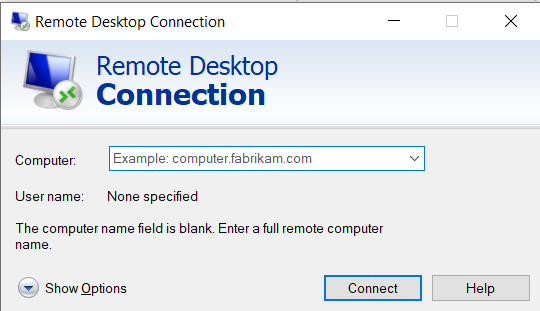
- ➔ On your keyboard, press: Ctrl + Shift + Esc.
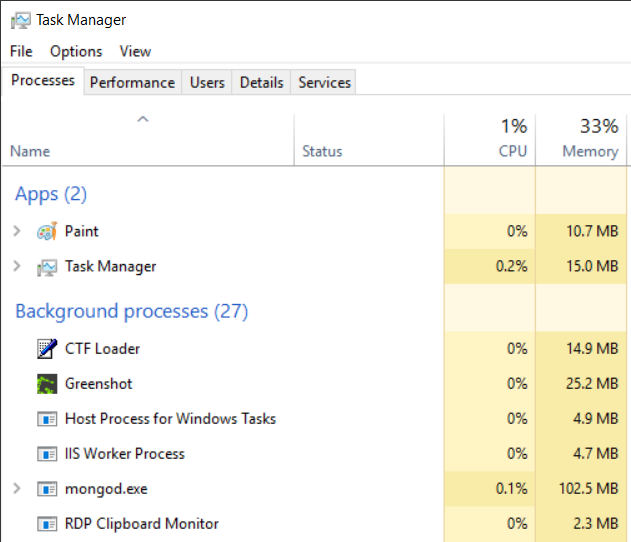
That’s it! It immediately opens Task Manager on the remote machine.
Also Read: How can you connect to a Remote Desktop using CMD?
➢ Method 2: Use Ctrl + Alt + End
This method serves as the Remote Desktop equivalent of Ctrl+Alt+Delete as Windows reserves Ctrl + Alt + Delete for the local computer. Therefore, Remote Desktop provides Ctrl+Alt+End as an alternative.
- ➔ Connect to your remote machine.
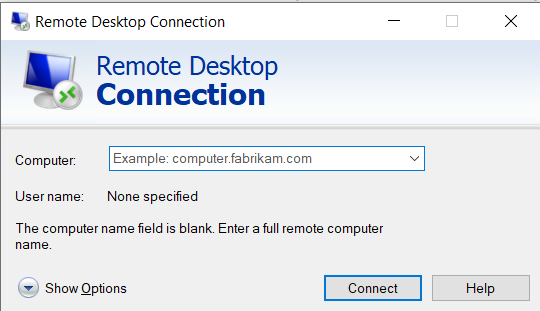
- ➔ Press Ctrl + Alt + End.
- ➔ From the security options screen, select ‘Task Manager’
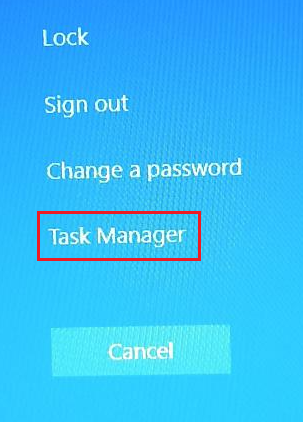
It launches Task Manager inside the remote session.
★ Important Note
If your keyboard lacks an End key, try: Fn + End
Also Read: How to Send Ctrl Alt Delete in Remote Desktop?
➢ Method 3: Open Task Manager from the Start Menu
You can also launch Task Manager manually, as it is available through the Windows Start Menu like any other application.
- ➔ Log in to your remote desktop.
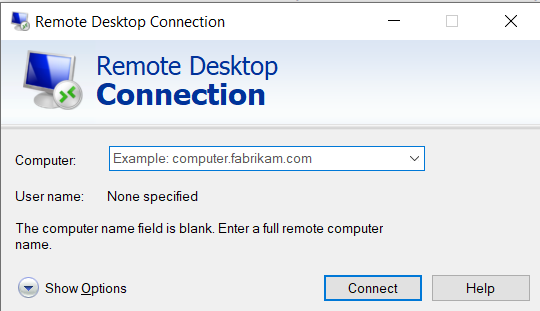
- ➔ Click the Windows Start button inside the remote desktop session. It allows you to search for Windows tools and applications.
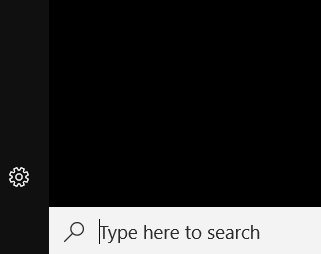
- ➔ In the search bar, type ‘Task Manager’
- ➔ Select the ‘Task Manager’ application from the results.
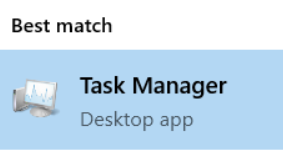
That’s it! Your task manager gets opened!
Also Read: How to Fix Remote Desktop Connection Has Stopped Working?
➢ Method 4: Open Task Manager from the Taskbar
Another easy method is to open Task Manager using the Taskbar.
- ➔ Inside the remote desktop session, right-click the taskbar.
- ➔ From the options, select ‘Task Manager’
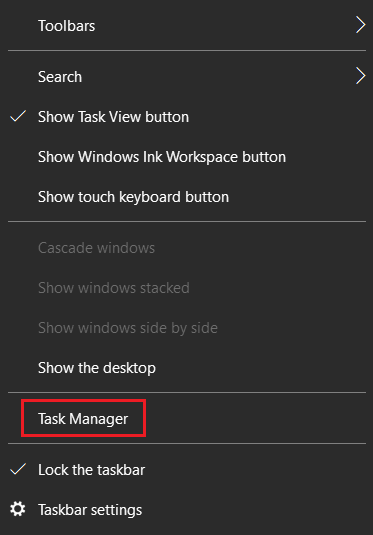
It will launch the task manager directly!
Also Read: How to Change Password on Remote Desktop?
Run your applications & access your desktop from anywhere with high-performance Windows VPS hosting
Conclusion
Opening Task Manager in a Remote Desktop session is essential for monitoring performance, troubleshooting issues, and managing running processes. While Ctrl + Alt + Delete does not work the same way in RDP, Windows provides several alternatives, such as Ctrl + Shift + Esc, Ctrl + Alt + End, and the Start Menu.
For most users, Ctrl + Shift + Esc is the quickest option, while Ctrl + Alt + End is ideal when you need access to the Windows Security screen. By understanding all available methods, you can efficiently manage your remote Windows server and resolve issues without unnecessary downtime.