
When managing a website or server, you often need to download multiple files at once. For example, you might want to:
- Take a backup of your website files
- Move your website to another server
- Download logs or project files from your server
If these files are stored in separate folders, downloading them individually can take a long time. This is where downloading a directory from FTP becomes useful.
FTP (File Transfer Protocol) allows you to transfer files between your computer and a server. Instead of downloading files individually, you can download an entire directory (folder) along with all its files and subfolders in just a few clicks.
In this article, we will explain two different methods to download a directory from FTP:
- Graphical Method (Using an FTP Client like FileZilla)
- Command Line Method (Using Terminal/Command Prompt)
Both methods are commonly used depending on your comfort level and the system environment.
Also Read: How To Get FTP Password From FileZilla
Methods to Download a Directory From FTP
➢ Method 1: Download a Directory Using a Graphical FTP Client
A graphical FTP client provides a visual interface for easily managing files and folders with your mouse. One of the most widely used FTP clients is FileZilla.
What You Need Before Downloading a Directory:
Before starting, make sure you have the following:
- FTP Client (such as FileZilla).
- FTP Host / Server Address.
- FTP Username.
- FTP Password.
- Port Number (usually 21).
Also Read: How to Connect to FTP Using FileZilla on Windows?
➔ Step 1: Connect to the FTP Server
At the top of the FTP client, enter the FTP login details provided by your hosting provider.
Fill in the following information:

- Host – Your server hostname or IP address
- Username – Your FTP username
- Password – Your FTP password
- Port – Usually 21
Click ‘Quickconnect’ to connect to the server.

Once connected successfully, the FTP interface will display both local and server files!
Also Read: How to Fix Can’t Connect to Filezilla Server Error
➔ Step 2: Understand the FTP Interface
Its interface has two main panels:
➔ Left Panel – Files on your local computer.
➔ Right Panel – Files on the FTP server.
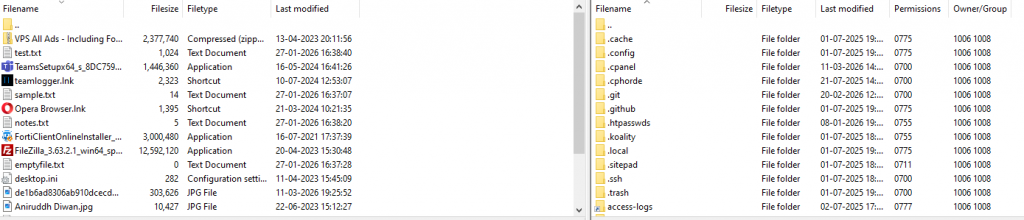
You will download files from the right panel (server) to the left panel (local computer).
➔ Step 3: Locate the Directory on the Server
Browse the server directories until you find the folder you want to download.
Some common directories you may see include:
- public_html
- www
- logs
- backup
- Uploads
Also Read: How To Search Files In FileZilla?
➔ Step 4: Download the Directory
Once you locate the directory:
➔ Right-click the folder you want to download.
➔ Click ‘Download’ from the options.
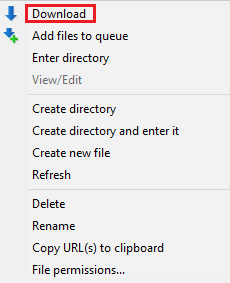
The FTP client will automatically start downloading:
- All files inside the directory.
- All subfolders.
- The entire folder structure.
Also Read: Simple Steps To Add Private Key in Filezilla For SFTP
➔ Step 5: Monitor the Download Progress
The FTP client will show a transfer queue or progress panel where you can see:
- Files being transferred
- Completed downloads
- Failed transfers
Wait until all transfers are completed!
➔ Step 6: Verify the Downloaded Directory
After the transfer is finished:
- Open the local folder where the files were downloaded.
- Check the downloaded directory.
- Confirm that all files and subfolders are present.
This ensures that the directory was downloaded successfully!
Also Read: Common FTP Errors With Solutions Important to Know
➢ Method 2: Download a Directory Using the Command Line
If you prefer working with terminal commands, you can download directories using the FTP command-line interface. This method is commonly used by developers and system administrators.
When you open Terminal (Linux) or Command Prompt (Windows) and run the ftp command, many basic commands are the same.
➔ Step 1: Connect to the FTP Server
➔ Run the following command:
| ftp yourdomain.com |
OR
➔ Use the server IP address:
| ftp 192.168.1.1 |
The system will prompt you to enter:
- FTP Username
- FTP Password
Once authenticated, you will be connected to the FTP server!
➔ Step 2: Navigate to the Required Directory
Use the cd command to move to the directory you want to download.
Example:
| cd public_html |
You can view files and directories using:
| ls |
Also Read: How to Create a File in Command Prompt?
➔ Step 3: Enable Recursive Download
To download a full directory structure, you need to enable recursive mode.
➔ Use the following command:
| prompt |
This disables interactive prompts during multiple file transfers.
➔ Step 4: Download the Directory
Use the mget command to download multiple files.
Example:
| mget * |
This command downloads all files in the current directory.
However, the traditional FTP command has limited support for recursive directory downloads, so many users prefer tools like wget or lftp for downloading entire folders.
Also Read: How to Check Folder Permission in Windows CMD?
Key Limitation of Default FTP (Both Systems)
The default FTP command on both Linux and Windows does NOT properly support recursive directory downloads.
➔ This means:
➔ It downloads files in the current folder.
It does not automatically download subfolders.
Because of this limitation, advanced tools are usually preferred.
➢ Alternative Command Line Method Using wget
If the FTP server allows it, you can use the following command to download an entire directory recursively:
| wget -r ftp://username:password@yourdomain.com/directory/ |
This command will:
- Download the directory.
- Download all files inside it.
- Download all subdirectories.
- Preserve the folder structure.
➢ Better Method in Linux: Using lftp
Another powerful tool is lftp.
Example:
| lftp ftp://username:password@yourdomain.com |
➔ Then run:
| mirror public_html |
The mirror command downloads the entire directory recursively.
➢ Windows Alternative Command Line Tools
Modern Windows systems often use tools like:
PowerShell
Example:
| Invoke-WebRequest ftp://username:password@domain.com/file.zip -OutFile file.zip |
Also Read: How to Rename a Folder in Linux?
Conclusion
While Linux and Windows both support basic FTP commands, their command-line tools are not completely identical in functionality. The built-in FTP client on both systems allows you to connect to a server and download files, but it offers limited support for recursively downloading entire directories.
For this reason, Linux users often rely on powerful tools like wget or lftp, while Windows users typically use graphical FTP clients or PowerShell-based tools for easier directory transfers.
Understanding these differences helps you choose the right method to efficiently download directories from an FTP server on your operating system.