
Having an assistant available 24/7 that can help you troubleshoot website issues, analyse code, generate commands, explain errors, and even create automation scripts within seconds is amazing, right?
That’s exactly why many website owners, developers, and system administrators are exploring ways to use AI tools like ChatGPT alongside their hosting environments.
However, one important fact often creates confusion:
ChatGPT cannot directly log in to your cPanel account, browse your server files, or access your hosting environment on its own.
Instead, ChatGPT acts as an intelligent assistant that helps you work with your cPanel files safely and efficiently while you remain in complete control of your server.
In this guide, we will cover what accessing cPanel files via ChatGPT actually means, how to do it securely, which tasks AI can assist with, and the precautions you should always follow before sharing any server-related information.
Also Read: How to Add DMARC to Your Domain Using cPanel?
What Does “Access cPanel Files Via ChatGPT” Mean?
When people search for accessing cPanel files through ChatGPT, they usually want AI assistance with:
- Reviewing website files
- Troubleshooting code errors
- Understanding configuration files
- Generating commands
- Creating backup scripts
- Analyzing log files
- Managing WordPress or web applications
Following these practices significantly reduces security risks while still allowing you to benefit from AI assistance.
Ways to Access cPanel Files Via ChatGPT
- ➢ Method 1: Access Files Through cPanel File Manager and Share Specific Content
This is the safest and most common method, as File Manager lets you view and manage your website files directly in the browser without requiring SSH access.
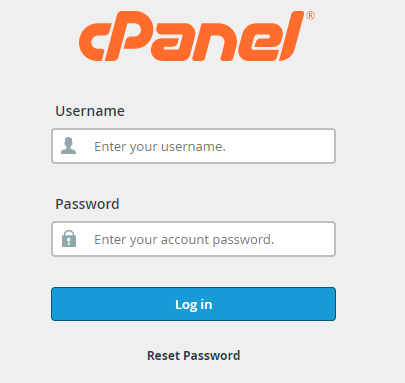
➔ Log in to your cPanel.
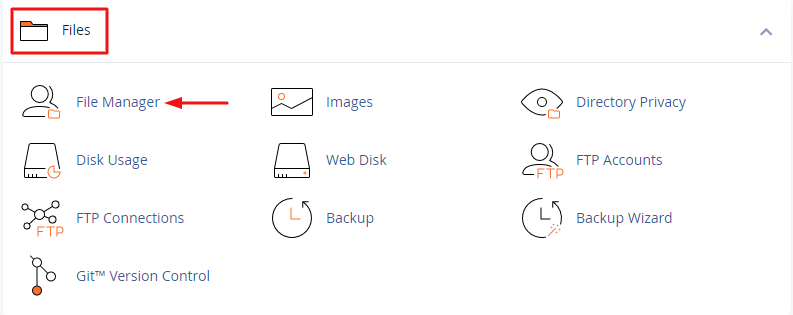
➔ Navigate to the ‘Files’ and select ‘File Manager’.
➔ Locate the required file for which you need assistance.
For example:
- index.php
- functions.php
- .htaccess
- error_log
- Custom application files
★ Point to Know
Instead of sharing an entire website, you should focus only on the file related to the issue you are investigating. It reduces unnecessary exposure of server information and speeds up troubleshooting.
➔ Before pasting content into ChatGPT, you have to remove:
- Passwords
- API keys
- Database credentials
- Secret tokens
- Personal customer information
It protects your website, customers, and server infrastructure from accidental exposure.
★ Quick Tip
Replace sensitive values with placeholders such as:
DB_PASSWORD=YOUR_PASSWORD_HERE
API_KEY=REDACTED
This allows ChatGPT to understand the structure without seeing actual credentials.
- ➔ Now, you have to paste the required section into ChatGPT. You have to provide sufficient context to help ChatGPT generate more accurate suggestions.
Example Prompt:
My PHP application is showing a 500 error. Please review this code section from your side and identify possible issues.
Also Read: How to Create a Basic SPF Record in cPanel?
➢ Method 2: Access Files by Uploading Specific Files
Another easy way to get assistance with website files is to download the required file from cPanel and upload it directly to ChatGPT for review.
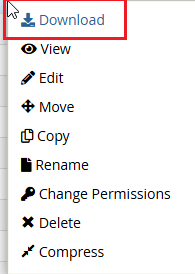
➔ You just have to navigate to the file & download it from the File Manager.
➔ Before uploading, check whether the file contains:
- Passwords
- API keys
- Database credentials
- Authentication tokens
- Customer information
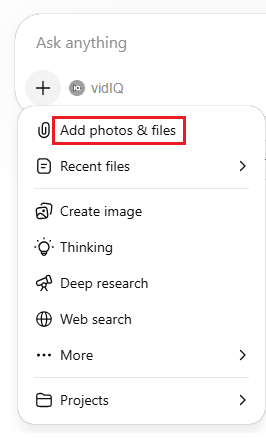
➔ Use the file upload option in ChatGPT and attach the downloaded file.
Then provide a clear prompt such as:
Analyze this error log and identify the cause of the issue. Review this PHP file and explain what it does & check this .htaccess file for redirect problems. Also, identify any security concerns in this code.
➔ You have to read the recommendations and verify any proposed changes before implementing them. Also, it is advisable to test modifications on a staging environment first.
★ Pro Tip
If your issue involves multiple files, you can upload several related files to ChatGPT in the same conversation, as providing multiple files gives ChatGPT more context, which can lead to more accurate troubleshooting and recommendations.
Also Read: How to Decrease Inode Usage in cPanel?
What to Avoid
The following practices can create serious security risks and should be avoided.
★ Never Paste Passwords or API Keys into Chat
Credentials should remain private at all times.
★ Never Share Your Server IP Address
Keep infrastructure details private whenever possible.
★ Never Paste .env or wp-config.php Contents
These files often contain sensitive credentials.
★ Never Skip Staging
Test changes in a staging environment before production deployment.
★ Never Paste Client Personal Data
Protect customer privacy and comply with data protection requirements.
Also Read: How to Access the cPanel Database Remotely?
Additional Best Practices to Follow
➔ Keep Regular Backups
Always maintain recent backups before implementing any AI-generated suggestions.
➔ Use Version Control
Store website code in Git repositories whenever possible.
➔ Document Changes
Maintain a record of modifications performed after AI-assisted troubleshooting.
➔ Validate Every Output
AI can make mistakes. Treat suggestions as guidance rather than guaranteed solutions.
★ Important Note
All major AI platforms recommend reviewing generated code, scripts, and commands before using them.
You remain responsible for any actions performed on your hosting environment.
Always verify outputs, test changes in staging environments, and maintain backups before applying modifications to production systems.
Also Read: How to View the Error Log in cPanel?

Manage files, databases, emails, and applications using our feature-rich cPanel hosting.
Conclusion
ChatGPT can be an extremely valuable assistant for website management, troubleshooting, automation, and server administration, but it should never be treated as a direct replacement for secure hosting practices.
By avoiding the sharing of sensitive credentials, carefully reviewing every command, testing changes before deployment, and maintaining regular backups, you can take advantage of AI-powered assistance without compromising server security.
Just Remember: ChatGPT doesn’t manage your server, YOU DO. AI provides guidance while you make decisions and take action. Following this principle allows you to benefit from AI’s speed and convenience while maintaining a secure and reliable hosting environment.