
You type a website name into your browser, press Enter, and wait… and wait…
while the page slowly starts loading. In many cases, the actual website server is not the problem; the delay begins much earlier during the DNS lookup process.
As you know, DNS (Domain Name System) converts human-friendly domain names into IP addresses that computers understand. If this translation process slows down, every website request is delayed before the connection even starts.
In 2026, website speed is more important than ever. Slow DNS lookups can affect:
- Website loading speed
- User experience
- SEO performance
- API response time
- Gaming and streaming latency
- Email delivery speed
- Business productivity
The good news is that slow DNS lookup issues are usually fixable with the right troubleshooting steps.
In this guide, you will learn:
- What a slow DNS lookup actually means
- Common reasons behind DNS delays
- How to diagnose the issue
- Detailed steps to fix slow DNS lookup
- Small optimisation tips for better DNS performance
Also Read: How to Connect Your Domain with Your Hosting Account
What is DNS Lookup?
A DNS lookup is the process by which your device queries a DNS server for the IP address associated with a domain name.
For example:
www.example.com → 192.0.2.1
Before your browser connects to a website, it must first complete this DNS translation. If the DNS server is responding slowly, the browser waits longer before loading the website.
Also Read: What is the EPP Code, and Where Can You Find It?
What are the Signs of Slow DNS Lookup?
Here are some common symptoms:
- ➔ When websites take time to start loading
- ➔ When “Waiting for server response” appears frequently
- ➔ When pages load fast after refreshing
- ➔ When the internet is slow only on certain websites
- ➔ When applications take time to connect
- ➔ When high DNS lookup time in website speed tests
- ➔ When delays while opening emails or cloud applications
Also Read: Guide to Fix DNS_PROBE_FINISHED_NXDOMAIN?
What are the Common Causes of Slow DNS Lookup?
1. Slow DNS Resolver
This is one of the most common causes of DNS delays. Your internet provider’s DNS servers may be overloaded or poorly optimised, which is causing the issue.
2. DNS Cache Problems
Sometimes old or corrupted DNS cache entries can create lookup delays or incorrect routing. So, your device may keep trying outdated DNS records before requesting fresh ones.
3. High DNS TTL Misconfiguration
TTL (Time To Live) defines how long DNS records stay cached. Very low TTL values can force devices to repeatedly request DNS records, which increases lookup time.
4. Too Many DNS Requests
Websites with multiple external scripts, tracking tools, fonts, and APIs generate extra DNS lookups & each additional domain creates another DNS request.
5. Network Congestion
It is obvious that a slow or unstable internet connection can also increase DNS response time.
6. Firewall or Security Software
There are some antivirus tools, VPNs, or firewalls that inspect DNS traffic, which may slow down requests.
7. Poor Hosting DNS Infrastructure
If your domain uses slow or unreliable nameservers, DNS resolution becomes slower globally.
Also Read: How to Configure Domain Redirects in cPanel?
How to Check DNS Lookup Speed?
Before fixing the issue, it is important to determine whether DNS is actually the problem.
➢ Method 1: By Using Browser Developer Tools
This method shows whether the delay occurs during DNS lookup or elsewhere.
Steps to follow:
- ➔ Open your browser & press F12
- ➔ Go to the ‘Network’ tab & reload the website
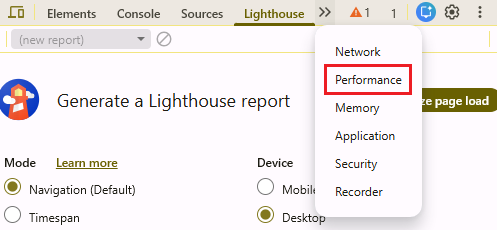
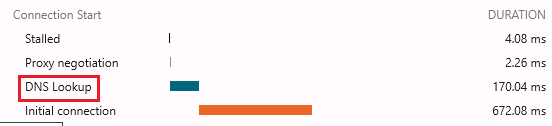
- ➔ In that, check the timing section

If “DNS Lookup” takes an unusually long time, DNS is likely the issue.
➢ Method 2: Use Command Line Tools
You can use the command method to check the speed of DNS Lookup
On Windows
- ➔ Open Command Prompt and run:
| nslookup example.com |
Replace “example.com” with your domain.
On Linux/macOS
| dig example.com |
What does this do?
- ➔ These tools measure how quickly DNS servers respond.
- ➔ Higher response times indicate DNS delays.
When Slow DNS Lookup Becomes a Serious Problem?
You should investigate immediately if:
- If your DNS lookup exceeds 500ms regularly
- If your website speed suddenly drops
- If users report intermittent loading issues
- If DNS failures occur in multiple countries
- If Email delivery becomes inconsistent
Persistent DNS issues can negatively affect:
- Your SEO rankings
- Your Conversion rates
- Your Customer trust
- Your Website uptime perception
Also Read: Difference Between a Website, Domain Name and a URL
Ways to Fix Slow DNS Lookup
1. Change Your DNS Server
➢ Why This Works
Your default ISP DNS servers may not be optimized for speed.
Public DNS providers usually offer:
- Faster response times
- Better global infrastructure
- Improved reliability
- Lower latency
Popular DNS Providers
| Provider | Primary DNS | Secondary DNS |
| Google DNS | 8.8.8.8 | 8.8.4.4 |
| Cloudflare DNS | 1.1.1.1 | 1.0.0.1 |
| OpenDNS | 208.67.222.222 | 208.67.220.220 |
➢ Steps to Change DNS on Windows
- 1. Firstly, open your ‘Control Panel’ on your PC.

- 2. Go to the ‘Network and Internet.’
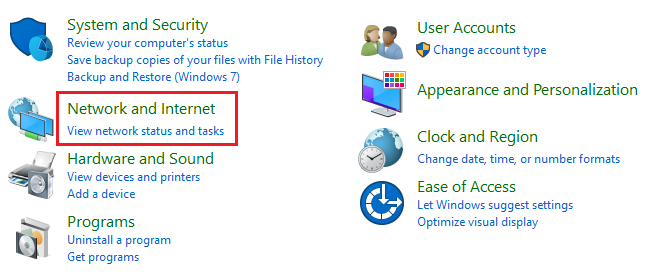
- 3. In that, click on ‘Network and Sharing Center’

- 4. click ‘Change Adapter Settings’
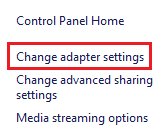
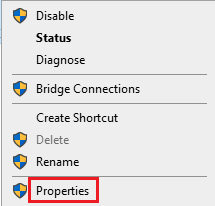
- 5. Right-click your network connection & select ‘Properties’
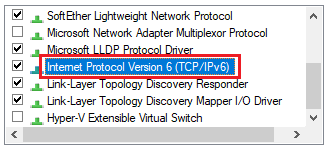
- 6. Open ‘Internet Protocol Version 4 (TCP/IPv4)’ by double-clicking on it.
- 7. Choose ‘Use the following DNS server addresses’

- 8. Enter the DNS values

- 9. Save settings by clicking ‘OK’

➢ What This Will Do?
Your system will start using faster DNS resolvers for future requests.
★ Quick Tip
Cloudflare DNS (1.1.1.1) is widely known for its low-latency, privacy-focused DNS performance.
2. Flush DNS Cache
➢ Why This Works
Your system stores DNS records locally to speed up browsing. If the cache becomes outdated or corrupted, it can create delays.
Flushing clears old entries and forces fresh DNS requests.
- ➔ On Windows
| ipconfig /flushdns |
- ➔ On macOS
| sudo dscacheutil -flushcache; sudo killall -HUP mDNSResponder |
- ➔ On Linux
| sudo systemctl restart systemd-resolved |
➢ What This Will Do?
Your device will rebuild the DNS cache using updated records.
3. Restart Your Router
➢ Why This Works
Routers also maintain temporary DNS and network sessions. Over time, cached sessions or memory issues may affect DNS performance.
➢ Steps to follow
- ➔ You have to turn off your router
- ➔ Wait for 30 seconds
- ➔ Turn it back on
- ➔ Reconnect to the network
➢ Why This Works
This will refresh DNS handling and network routing on the router.
4. Disable Unnecessary VPN or Security Filtering
➢ Why This Works
Some VPNs and antivirus software route DNS requests through additional filtering systems.
This increases lookup latency.
➢ Steps to follow
- ➔ Temporarily disable VPN
- ➔ You can disable DNS filtering features
- ➔ Test website speed again
➢ What This Will Do
This helps identify whether security filtering is causing DNS delays.
★ Small Optimization Tip
If you use a VPN regularly, choose one that supports:
- Fast DNS resolvers
- WireGuard protocol
- Split tunneling
5. Optimize Website DNS Requests
*Note: This method is useful for Website Owners.
➢ Why This Works
Every external service creates another DNS lookup. So having too many third-party services increases page load time.
➢ What you can do
Reduce External Requests
Try minimizing:
- External fonts
- Tracking scripts
- Ad networks
- Social media widgets
- Multiple CDN domains
- What This Will Do
➢ What this will do
By reducing DNS lookups, your website’s loading speed will improve.
6. Use a Reliable DNS Hosting Provider
*Note: This method is useful for Website Owners.
➢ Why This Works
Premium DNS providers use:
- Global Anycast networks
- Faster propagation
- Redundant infrastructure
- Better uptime
Features you have to Look For
- Anycast DNS
- DDoS protection
- Global DNS nodes
- DNSSEC support
- Low-latency infrastructure
➢ What This Will Do
Users will connect to the nearest DNS node for faster responses.
★ Quick Tip
DNS speed can affect Core Web Vitals indirectly because browsers cannot load assets until DNS resolution completes.
7. Enable DNS Prefetching
➢ Why This Works
DNS prefetching tells browsers to resolve domains before users click links. This reduces future waiting time.
For Example:
<link rel=”dns-prefetch” href=”//example-cdn.com”>
➢ What This Will Do
The browser performs DNS resolution in advance to speed up loading.
8. Check for High DNS Response Time from Hosting
➢ Why This Works
Sometimes the issue comes from an overloaded hosting infrastructure or poorly configured nameservers.
➢ What You Have to Check
- ➔ Nameserver response time
- ➔ DNS propagation issues
- ➔ DNSSEC errors
- ➔ Server overload
- ➔ Geographic latency
➢ What This Will Do
It helps identify whether the hosting provider is causing DNS delays.
9. Reduce DNS TTL Misconfiguration
➢ Why This Works
Extremely low TTL values force repeated DNS lookups. This increases the load on DNS servers.
➢ Recommended TTL by Host IT Smart
For most websites: 300 to 3600 seconds
➢ What This Will Do
It balances caching efficiency with DNS update flexibility.
Also Read: How to Configure DNS on Linux?
Advanced DNS Optimization Tips to Follow
➢ Use IPv6-Compatible DNS
Modern DNS providers that support IPv6 may offer faster routing in certain regions.
➢ Enable Browser DNS Caching
Most modern browsers already cache DNS records, but clearing excessive extensions can improve performance.
➢ Use HTTP/3-Compatible Hosting
Modern protocols reduce connection setup overhead after DNS resolution.
Also Read: How To Create a DNS Zone in WHM?
Conclusion
Slow DNS lookup may seem like a small technical issue, but it can significantly affect browsing speed, website performance, and user experience.
The good part is that most DNS issues can be improved by:
- Switching to a faster DNS provider
- Clearing DNS cache
- Optimizing website DNS requests
- Using reliable nameservers
- Reducing unnecessary third-party connections
For website owners in 2026, DNS optimization is no longer optional. Faster DNS resolution helps improve website responsiveness, enhances user satisfaction, and supports better overall performance.
Even a few milliseconds saved during DNS resolution can create a noticeably faster browsing experience for visitors across the world.