
If you type a website name into your browser, only to see a frustrating message that says “DNS Server Not Responding.” It feels like knocking on a door and nobody answering from the other side.
The internet works fast because of DNS. It silently connects your browser to the correct website server within seconds. But when DNS stops responding, websites fail to load, emails may stop syncing, and online work suddenly halts.
The good news is that in most cases, this issue can be fixed within a few minutes using simple troubleshooting steps.
In this detailed guide, you will learn:
- What does the DNS Server Not Responding error mean?
- Why does this problem occur
- How to fix it step-by-step
So whether you are using Windows, macOS, or a home internet connection, this guide will help you solve the issue easily!
What Does “DNS Server Not Responding” Mean?
A “DNS Server Not Responding” error means your device is unable to communicate with the DNS server that converts domain names into IP addresses.
As a result:
- Websites fail to open
- Browsers display connection errors
- The Internet may appear connected, but pages won’t load
This issue can happen because of:
- Internet connection problems
- Wrong DNS settings
- Corrupted DNS cache
- Firewall interference
- Router issues
- ISP DNS server failure
Also Read: How to Fix Slow DNS Lookup?
Common Signs of DNS Problems
When there is this issue, you may notice symptoms like:
- Websites not loading
- Browser showing “DNS_PROBE_FINISHED_NO_INTERNET”
- Slow internet browsing
- Some websites work while others fail
- Email applications are not syncing
- Internet connected, but no browsing access
Also Read: How to Connect Your Domain with Your Hosting Account
Solutions to Fix DNS Server Not Responding
1. Restart Your Router and Computer
2. Check Your Internet Connection
3. Flush DNS Cache
4. Change DNS Server Address
5. Disable Antivirus or Firewall Temporarily
6. Restart DNS Client Service (Windows)
7. Reset TCP/IP and Network Settings
8. Update Network Drivers
9. Contact Your Internet Service Provider (ISP)
1. Restart Your Router and Computer
Sometimes the DNS issue is temporary and caused by network glitches or a router memory overload. Restarting your system refreshes the connection and clears temporary networking problems.
You just have to turn off your router/modem & wait 30 seconds. After that, turn it ON again. Just wait until all internet lights become stable!
In the same way, restart your computer & wait for the system to boot properly.
★ Quick Tip
If multiple devices in your home show the same DNS issue, the problem is likely with the router or ISP connection.
Also Read: Guide to Fix DNS_PROBE_FINISHED_NXDOMAIN?
2. Check Your Internet Connection
Sometimes the internet itself is disconnected, and the DNS error is simply a result of no connectivity.
- You can try by opening another website.
- You can try using another browser.
- You can connect another device to the same network.
- Also, check whether mobile data works.
3. Flush DNS Cache
Your computer stores DNS records locally to load websites faster in the future. Sometimes this cache becomes outdated or corrupted, causing DNS issues.
So, you have to flush the DNS cache, which clears corrupted DNS records,
refreshes website address information & resolves many browsing issues instantly.
➢ Steps for Windows
➔ Open ‘Command Prompt’ as Administrator & run the following command:
| ipconfig /flushdns |
➔ Press ‘Enter’, and you should see:
| Successfully flushed the DNS Resolver Cache |
➢ Steps for macOS
Open Terminal and run the following command:
| sudo dscacheutil -flushcache |
★ Point to Know
DNS cache cleanup is one of the safest and fastest troubleshooting methods for internet issues.
4. Change DNS Server Address
There is a chance that your ISP’s DNS server may be slow, down, overloaded
or unresponsive
In that case, switching to public DNS servers such as Google DNS or Cloudflare DNS often resolves the issue.
Best Public DNS Servers
| Provider | Primary DNS | Secondary DNS |
| Google DNS | 8.8.8.8 | 8.8.4.4 |
| Cloudflare DNS | 1.1.1.1 | 1.0.0.1 |
| OpenDNS | 208.67.222.222 | 208.67.220.220 |
Steps to Change DNS in Windows
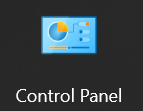
➔ Open Control Panel
➔ In that, go to ‘Network and Internet’
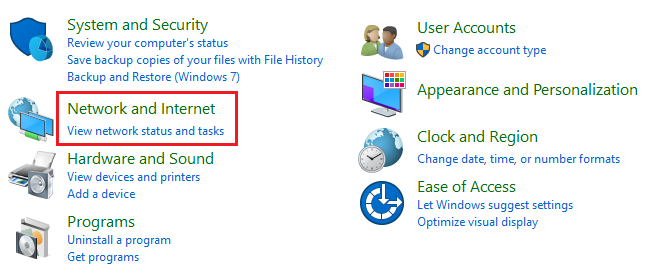
➔ From the options, click on ‘Network and Sharing Center.’

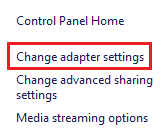
➔ After that, click on ‘Change Adapter Settings’
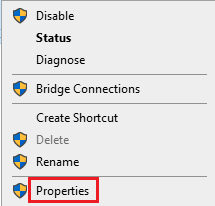
➔ Right-click your active network & select ‘properties’
➔ Double-click on ‘Internet Protocol Version 4 (TCP/IPv4).’
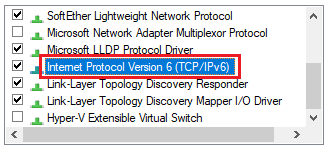
➔ In that, you have to select ‘Use the following DNS server addresses’

➔ Now, enter as given below:
- Preferred DNS: 8.8.8.8
- Alternate DNS: 8.8.4.4

➔ Click ‘OK’

★ Quick Tip
Cloudflare DNS (1.1.1.1) is known for speed and privacy-focused browsing.
5. Disable Antivirus or Firewall Temporarily
Sometimes security software blocks DNS communication by mistake. In that case, temporarily disabling it helps identify whether the software is causing the issue.
For this, you just have to open the Antivirus or Firewall settings & disable the protection temporarily.
★ Important Note
Re-enable your antivirus after testing to keep your system protected.
Also Read: Difference Between a Website, Domain Name and a URL
6. Restart DNS Client Service (Windows)
Windows uses a background service called DNS Client to manage DNS lookups. If this service stops working, DNS issues may occur.
You simply have to restart the DNS client service by using the following steps.
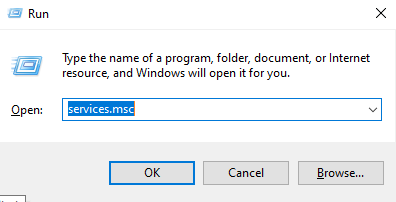
➔ Press ‘Windows + R.’
➔ In that, type ‘services.msc’ & press ‘Enter.’
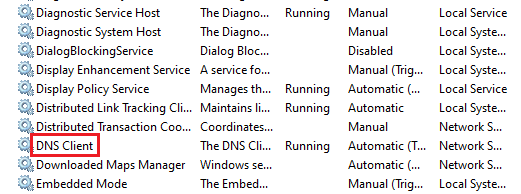
➔ From the list of services, find ‘DNS Client’
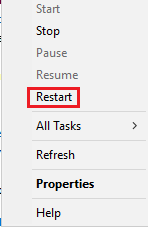
➔ Right-click on it and select ‘Restart’
7. Reset TCP/IP and Network Settings
Corrupted network configurations can prevent proper DNS communication. So, resetting TCP/IP restores default network settings.
➢ Steps for Windows
Open Command Prompt as Administrator and run:
| netsh int ip reset netsh winsock reset |
Once done, restart your computer afterwards.
What This Will Do?
- ★ It repairs network stack issues.
- ★ It resets the internet communication settings.
- ★ It fixes hidden networking errors.
Also Read: Fix “Site Can’t Be Reached the Connection Was Reset”
8. Update Network Drivers
Sometimes, outdated network adapter drivers can cause DNS and connectivity issues. In that case, updating drivers improves compatibility issues, network stability & fixes driver-related networking bugs.
For this, follow the steps below:
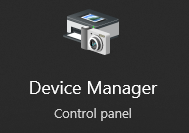
➔ Open ‘Device Manager’ on your computer.
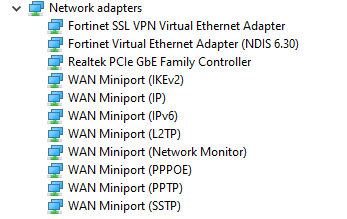
➔ In that, expand ‘Network Adapters’ on your computer.
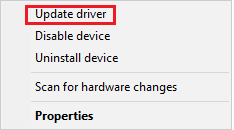
➔ Right-click your adapter & select ‘Update Driver’ on your computer.
9. Contact Your Internet Service Provider (ISP)
If none of the above methods works, the issue may be with your ISP’s DNS servers.
Also Read: How to Fix Website sent an invalid response ERR SSL_PROTOCOL_ERROR
Conclusion
The “DNS Server Not Responding” error may seem technical, but in reality, it is often caused by simple networking problems that can be fixed within minutes.
From restarting your router to changing DNS servers and clearing DNS cache, each troubleshooting method helps restore communication between your device and the internet.
The best approach is to follow the solutions step by step, patiently. In most cases, one of these fixes quickly restores browsing access and resolves the issue completely.
Keeping your DNS settings clean, using trusted DNS providers, and maintaining updated network configurations can also help prevent future DNS-related problems and ensure a smoother online experience.