
MetaTrader 4 (MT4) remains one of the most widely used trading platforms among Forex traders. Many traders use multiple trading accounts for different purposes, such as automated trading, strategy testing, account management, or funded trading programs.
While MT4 allows you to log in to multiple accounts, constantly switching between them can be inconvenient and may interrupt active trading. Installing multiple MT4 terminals on a VPS offers a more efficient solution, allowing each account to run independently on its own platform instance.
In this guide, you will learn how to install multiple MT4 terminals from the same broker on a VPS, why traders use this setup, and the steps required to ensure each installation operates separately without conflicts.
Also Read: Guide to Connect to VPS on an Android Device
What Does Installing Multiple MT4s Mean?
Installing multiple MT4s means creating separate MT4 terminal installations on the same VPS, even when all installations belong to the same broker.
- Login credentials
- Trading account
- Expert Advisors (EAs)
- Indicators
- Configuration files
- Trading history
- Logs
This separation helps avoid account mix-ups and makes strategy management much easier.
Before You Begin
Ensure you have:
- A Forex VPS with sufficient resources
- MT4 installation file from your broker
- Administrator access to the VPS
- Login details for each trading account
★ Quick Tip
If you plan to run several EAs simultaneously, monitor your VPS CPU and RAM usage regularly. Running too many terminals on an underpowered VPS can impact platform performance.
Also Read: How to Send Ctrl Alt Delete in Remote Desktop in Quick Ways?
Steps to Install Multiple MT4s from the Same Broker on a VPS
Follow the steps below carefully:
➜ Firstly, log in to your VPS & download the MT4 setup file from your broker. You have to save the installer in an easy-to-find location, such as the Desktop or Downloads.

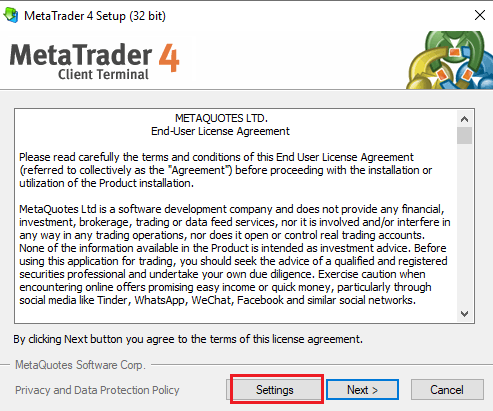
➜ Double-click the installation file to begin setup. When the installation wizard appears, do not click ‘Next’ immediately. Instead, select ‘Settings.’
➜ In the installation settings, modify the destination folder.
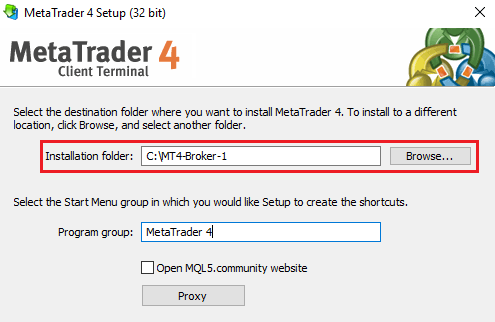
Example:
➢ First Installation
C:\MT4-Broker-1
➢ Second Installation
C:\MT4-Broker-2
➢ Third Installation
C:\MT4-Broker-3
With this, each folder acts as a completely separate MT4 environment. This allows separate accounts, separate EAs, separate indicators, and independent configuration files without affecting other installations.
➜ Now, click ‘Next’ and allow MT4 to install.
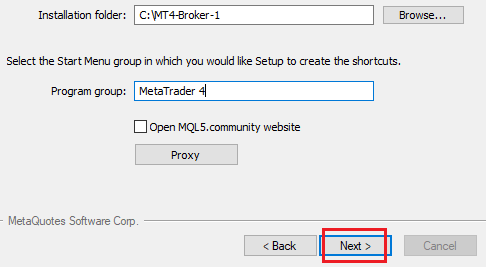
Once installation finishes, launch the terminal.
➜ Open the newly installed MT4 terminal & log into it.
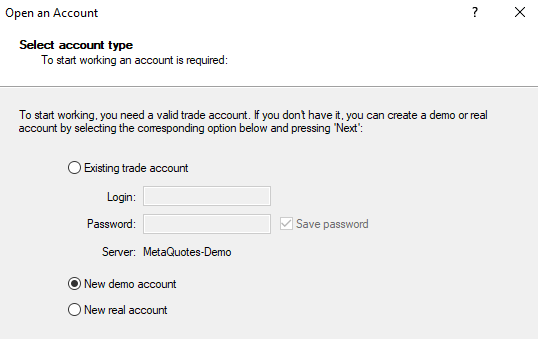
➜ To create additional MT4 terminals:
- ➢ Run the installer again.
- ➢ Select ‘Settings.’
- ➢ Choose a new folder name.
- ➢ Complete installation.
- ➢ Log in with the desired account.
➜ Now, you have to rename your shortcuts to easily identify each account.
Example:
- ➢ MT4 – Main Account
- ➢ MT4 – Scalping
- ➢ MT4 – Funded Account
- ➢ MT4 – EA Trading
Also Read: How to Fix Remote Desktop Connection Has Stopped Working?
How to Check if Multiple MT4 Terminals Are Running Correctly
Open all installed MT4 terminals & verify:
- ➜ Each terminal opens independently
- ➜ Each account displays the correct balance
- ➜ EAs are attached to intended charts
- ➜ No platform repeatedly logs out
- ➜ VPS CPU and RAM usage remain stable
If all checks pass, your setup is functioning properly!
Also Read: How to Change Password on Remote Desktop?
Common Issues and Solutions
| Issue | Possible Cause | Solution |
| New MT4 replaces the existing installation | Same installation folder used | Create a unique folder during setup |
| EA not running | Auto Trading disabled | Enable Auto Trading |
| Terminal running slowly | VPS resources insufficient | Upgrade VPS resources |
| Wrong account opened | Incorrect login details | Verify account credentials |
| Multiple terminals consume high memory | Too many charts or EAs | Reduce active charts and indicators |

Trade with multiple MT4 terminals from the same broker without lag, interruptions, or system limitations.
Conclusion
Installing multiple MT4 terminals from the same broker on a VPS is a practical way to manage several trading accounts, strategies, and Expert Advisors simultaneously. By creating separate installation folders for each MT4 instance, you ensure that each terminal operates independently of the others.
Whether you are running automated trading systems, managing funded accounts, or testing different strategies, a properly configured VPS setup can provide the stability, uptime, and performance needed for uninterrupted trading. With the right organization and resource management, multiple MT4 installations can help streamline your trading operations and make account management significantly easier.