
Managing cPanel accounts is critical to web hosting administration, particularly for those using WHM). Whether you’re a server administrator, a web hosting provider, or a webmaster, you may occasionally need to delete a cPanel account.
There could be various reasons, such as account inactivity, non-payment, or simply because the account is no longer needed. Understanding how to properly and safely delete a cPanel account ensures you maintain an organized and efficient server environment.
This comprehensive guide will walk you through deleting a cPanel account in WHM. We will cover everything from logging into your WHM account to verifying the successful deletion of the cPanel account.
Before proceeding, it is crucial to understand that deleting a cPanel account is irreversible and will permanently lose all associated data. Therefore, ensure adequate backups and review all dependencies before taking this action!
Also Read: How to Install a PHP extension in WHM?
Steps to Delete a cPanel in WHM
➔ Log into WHM with your root credentials.

➔ Once logged in, on the WHM dashboard, locate and click on ‘List Accounts.’

➔ In that section, find the cPanel account you wish to delete. You can use the search bar to quickly locate the account by entering the username or domain associated with the cPanel account.

➔ Once you have located the account, click the ‘+’ icon next to it to expand the options.

➔ In that, click on ‘Terminate Account.’

➔ A confirmation page will appear detailing the account information and warning you about the consequences of deleting the account. You need to carefully review the information. If you are sure that you want to delete the account, scroll down and click ‘Yes, remove this account.’
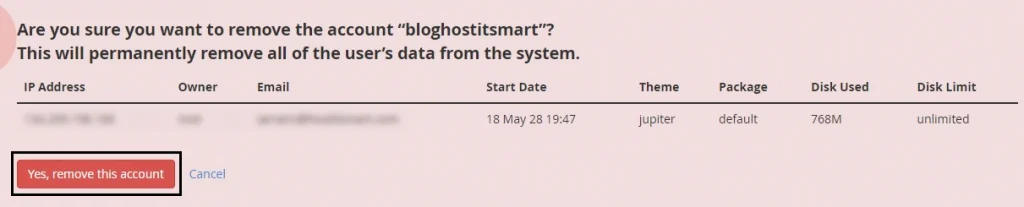
➔ WHM will now proceed to delete the account. Depending on its size, this process may take a few minutes. Once the deletion process is complete, you will receive a confirmation message.
➔ That’s it! Your cPanel account has been deleted. To verify whether it has been done, return to ‘List Accounts’ to ensure the account has been successfully removed. You should no longer see the deleted account listed.
Also Read: How to Whitelist an IP address in CSF from WHM?
This is how a cPanel account is deleted in WHM. It is a straightforward process but must be done with caution due to the irreversible nature of the action. Always ensure that you have backups and have considered all potential impacts before proceeding with the deletion.
Following the steps outlined in this guide will help you manage your cPanel accounts efficiently and securely.