
Running a website on a Windows Server is like managing a busy highway. Sometimes traffic gets stuck, applications stop responding, or websites become slow. In such situations, restarting IIS (Internet Information Services) helps refresh web services and restore websites to normal operation.
Whether you are managing a single website or multiple applications, knowing how to restart IIS properly is an essential skill for every server administrator.
In this guide, you will learn different methods for restarting IIS on Windows Server in simple language, along with practical tips and explanations of what each step does!
Also Read: How to Install IIS Manager in Windows Server?
Why is Restarting IIS Required?
Restarting IIS refreshes web services and resolves temporary server issues without rebooting the entire server.
Here are some common reasons why administrators restart IIS:
- The website becomes slow or unresponsive
- Changes made in the configuration are not reflecting
- Application pool crashes
- High memory usage
- SSL or DNS changes require a refresh
- Web services stop responding
- After installing updates or applications
★ Small Tip
Restarting only the required service or application pool is usually better than restarting the entire server because it minimizes downtime.
Also Read: How to Launch Windows Internet Information (IIS) Manager?
Things to Know Before Restarting IIS
Before you restart IIS, keep these important points in mind:
- Active website sessions may disconnect temporarily
- Users can experience short downtime
- Unsaved form submissions may get interrupted
- Restarting during low traffic hours is recommended
★ Pro Tip
If you are hosting multiple websites, restarting only the Application Pool is often the safest option because it avoids affecting all websites on the server.
Also Read: How to Add a Subdomain in IIS Manager?
Method 1: Restart IIS Using Command Prompt
This is the fastest and most commonly used method!
• Why is this method used?
The iisreset command quickly stops and restarts IIS services from the command line. It is useful for administrators who prefer fast server management.
➢ Steps to Restart IIS Using Command Prompt
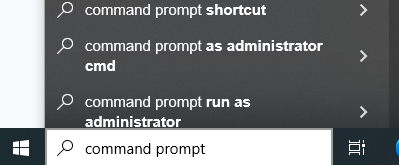
➔ Click on ‘Start Menu’ & search for ‘Command Prompt’
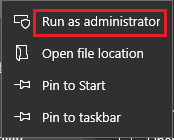
➔ Right-click on it & select‘Run as Administrator’
➔ Run the following command to restart IIS
| iisreset |
➢ What does this command do?
- ★ It stops all IIS services
- ★ It refreshes web services
- ★ It starts IIS again automatically
This helps clear temporary issues affecting websites or applications.
➔ If you only want to stop IIS services temporarily, run:
| iisreset /stop |
➢ What It Does?
This command starts IIS services if they were previously stopped.
★ Point to Know
If iisreset takes too long, it may indicate that an application or worker process is stuck in the background.
Method 2: Restart IIS Using Services Manager
This method is useful for users who prefer a graphical interface instead of command-line tools.
➢ Steps to Restart IIS Using Services Manager
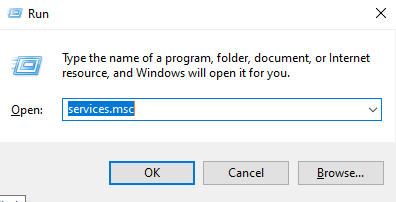
➔ Press ‘Win+R’
➔ Type ‘services.msc’ to open Services Manager & press ‘Enter.’
➔ You will see a list of services. From them, locate ‘World Wide Web Publishing Service.’
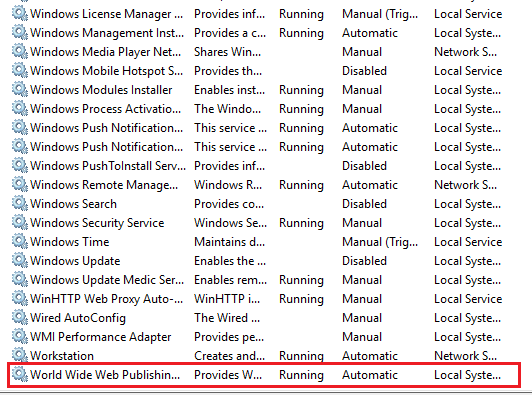
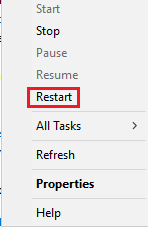
➔ On that service, right-click the service & click ‘Restart’
★ Small Tip
If the Restart option is unavailable, first click Stop, wait a few seconds, and then click Start.
Also Read: How to Install the SSL in IIS on Windows VPS?
Method 3: Restart IIS Using IIS Manager
This method is ideal for beginners because it provides visual controls for IIS management.
➔ You have to search for ‘IIS Manager’ from the Start Menu.

➔ In the left-side panel, ‘Select your server name.’
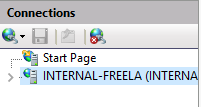
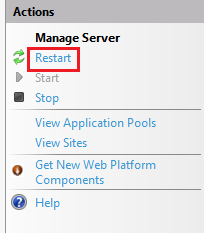
➔ On the right-side Actions panel, ‘Click Restart.’
★ Small Tip
This method is helpful when you want to visually monitor website status during restart operations.
Method 4: Restart Application Pool (Recommended for Websites)
Instead of restarting the complete IIS service, restarting only the Application Pool is often the best option.
This method is highly recommended for production servers.
➢ What is an Application Pool?
An Application Pool isolates websites and applications from each other.
This means:
- One crashed website will not affect others
- Resources are managed separately
- Website stability improves
➢ Why Recycle Application Pool Instead of Full IIS Restart?
Its benefits include:
- Less downtime
- Faster refresh
- Other websites remain online
- Better server performance management
➢ Steps to Restart IIS Using Application Pool
➔ Launch IIS Manager from the Start Menu.
➔ In the left-side panel, click ‘Application Pools.’
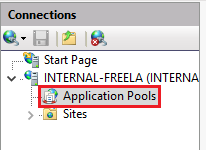
➔ Choose the app pool connected to your website.
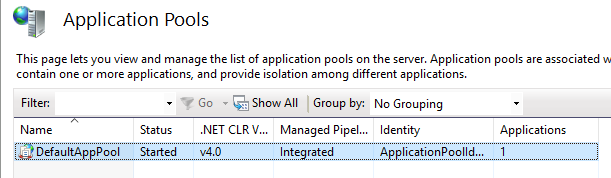
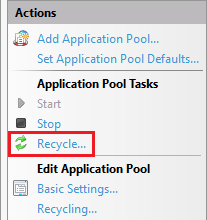
➔ On the right-side Actions panel, click ‘Recycle.’
★ Pro Tip
For busy production websites, Application Pool recycling is considered the safest and most professional method.
Also Read: How to Migrate IIS Website to Another Server?
Common Problems After Restarting IIS
Sometimes websites may still not work properly after restarting IIS.
Some of the possible reasons include:
- Application errors
- Incorrect bindings
- SSL issues
- Port conflicts
- Database connectivity problems
- Corrupted configuration files
Quick Troubleshooting Tips
➢ Check Website Status
In IIS Manager, ensure the website status shows as ‘Started’
➢ Verify Port Usage
You have to make sure another application is not already using ports:
- 80 (HTTP)
- 443 (HTTPS)
➢ Review Event Viewer
Windows Event Viewer shows you the exact error causing IIS problems.
➢ Check Firewall Rules
Blocked ports can prevent websites from loading even if IIS is running properly.
Also Read: How to Create an FTP Server in Windows?

Conclusion
Restarting IIS on Windows Server is one of the most important troubleshooting and maintenance tasks for website administrators. Whether you use Command Prompt, Services Manager, IIS Manager, or Application Pool Recycling, each method serves a different purpose depending on the situation.
For quick fixes, the iisreset command works well. However, for live production websites, recycling only the Application Pool is usually the better and safer approach because it minimizes downtime and keeps other websites running smoothly.
Understanding when and how to restart IIS properly helps maintain better website stability, performance, and uptime on your Windows Server environment.