
If you use Roundcube Webmail frequently, you have probably noticed that the default font size doesn’t always suit everyone’s eyes. For some users, the text may appear too small to read comfortably, while others may prefer a more compact view to see more messages at once.
The good thing is, Roundcube webmail gives you complete control to customize the font size according to your preference. Whether you want to change how emails look when you read them or how text appears when you write new ones, the process is simple.
In this article, we will guide you through the straightforward steps to adjust the font size in Roundcube Webmail, providing clear instructions that anyone can follow, with no technical jargon.
Let’s get started!
Also Read: Guide to Set Auto Reply in Roundcube Webmail
Changing the Font Size for the Roundcube Interface
When you log in to your Roundcube Webmail, the first thing you see is your inbox, where you read, reply to, and organize emails. If the text in your mailbox looks too small or too large, you can adjust the interface font size directly from the settings.
➔ After logging in, look at the top-right corner of your screen. You will find a ‘Settings’ option (represented by a gear icon). Click on it to open the configuration panel.

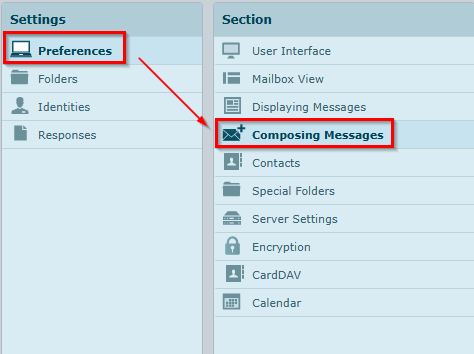
➔ On the left sidebar, you will see multiple options. Select ‘Preferences’ and then click on ‘Composing Messages.’
➔ Here, you will find various customization options related to the appearance of your Roundcube, including theme, layout, and font settings. You need to look for the section that says ‘Default font of HTML message’
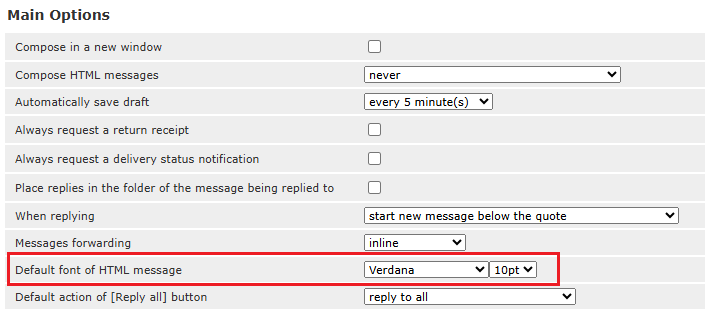
Select the option that best suits your preference.
Once you have selected your desired option, scroll down and click ‘Save’ to apply the changes.

Your Roundcube interface will now refresh, and you will immediately see the updated font size across your inbox, message list, and reading pane.
Also Read: Guide to Add a Profile Picture in RoundCube Webmail
Changing the Font Size While Composing an Email
If you are happy with the inbox size but want to change the font size of the emails you write or reply to, you can easily do that from the Compose window.
➔ Click on ‘Compose’ to start a new message.

➔ In that, you have to select the Editor Type to ‘HTML.’
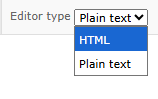
➔ Once you choose an HTML option, a toolbar will appear, allowing you to select the font type & change the font size.

➔ Click on it to choose your preferred text size — options specific numeric values (like 10pt, 12pt, etc.).
The text size will change instantly as you type in the message body, allowing you to visually confirm how your email will appear before sending.
You have to keep in mind that this setting applies only to the current message you are composing. It doesn’t affect future emails unless you change it again while writing them.
Also Read: Guide to Add a Signature to Roundcube Webmail
If You Don’t See Font Size Options
Some Roundcube installations or older themes might not show font options in the email composer toolbar. If that’s the case, you can still make the text appear larger or smaller using your browser’s built-in zoom feature.
Here’s how you can do it quickly:
★ For Windows users:
➔ Press Ctrl + Plus (+) to zoom in or Ctrl + Minus (-) to zoom out.
★ For Mac users:
➔ Press Command + Plus (+) or Command + Minus (-).
This method enlarges or reduces the entire interface, including your email content, folders, and menus, which makes it easier to read without changing the internal Roundcube settings.
Also Read: Guide to Change the Password in RoundCube Webmail
Conclusion
Customizing the font size in Roundcube Webmail is more than just about looks; it’s about improving your comfort and productivity. A readable and visually balanced interface helps you focus better, reduces eye strain, and makes handling emails a smoother experience.
Whether you tweak it through Roundcube’s User Interface settings or adjust the compose window font, the process takes just a minute, but can significantly enhance your daily workflow.
So go ahead and personalize your Roundcube experience, making reading and writing emails exactly how you like them!